

What is 4K resolution?
When you hear “4K,” you probably think of crystal-clear images and realistic, sharp visuals. But sometimes, even a 4K screen can appear pixelated, especially when viewed up close. To understand why this happens, you first need to know what 4K actually means.
Why can a 4K screen still look pixelated?
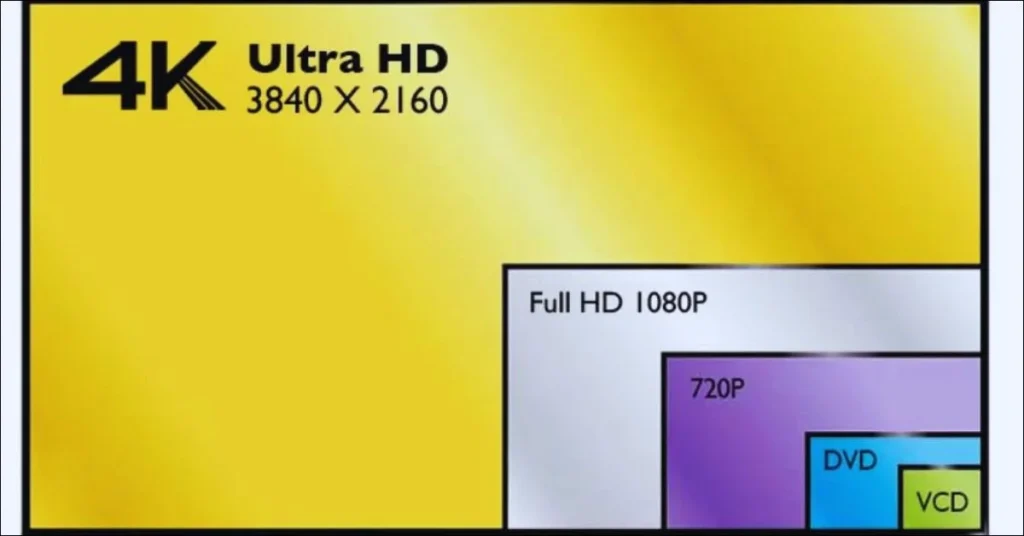
4K refers to the number of pixels on a screen. It has approximately 3840 x 2160 pixels, totaling more than 8.3 million pixels. Compared to... Full HD (1920 x 1080), this represents four times more detail. The higher the number of pixels, the sharper the image.
Even with millions of pixels, some 4K images or videos can still appear pixelated. The main reasons include:
- Low-quality source content
If the video or image you're viewing wasn't originally cropped or rendered in 4K, your screen needs to "stretch" it to fit the 4K resolution. This process, called upscaling, can make the edges appear rough and blurry. - Viewing distance
The closer you are to the screen, the easier it will be to see the individual pixels. On a large TV or a LED wall, Sitting too close makes even a 4K screen look pixelated. Ideally, the larger the screen, the further away you should sit. - Pixel density (PPI)
This refers to the number of pixels per inch of screen. A small 4K screen, like that of a smartphone, groups these pixels very close together, producing a sharp image. But a large 4K LED panel spreads these pixels over a wide area, reducing density and sharpness. - Screen Type and Quality
Not all 4K displays are created equal. The panel type, the spacing between the LED pixels, and the quality of the processing all affect the sharpness of the final image. Improper calibration or low refresh rates can cause even true 4K images to appear grainy.
How to fix pixelation on 4K screens
If your 4K monitor image appears grainy or blurry, try these quick fixes:
- Use native 4K content instead of lower resolution files.
- Adjust the viewing distance to match the screen size.
- Check the pixel spacing (pixel pitchIf using an LED wall, smaller spacing provides smoother images.
- Update your video card drivers or move your monitor to a different location to get better colors and sharpness.